How to Showcase Books on an Author Website: Design Tips and Best Practices for Squarespace
Your author website should be more than a digital business card. It's your storefront, your portfolio, and your best shot at turning curious visitors into loyal readers. But if your books aren't displayed in a way that grabs attention and makes buying easy, you're leaving sales on the table.
The key to showcasing books on your author website is creating dedicated, visually appealing book pages with high-quality cover images, compelling descriptions, and direct purchase links. When done right, your website becomes a 24/7 sales tool that works harder than any social media post ever could.
You don't need to be a web designer or tech expert to make this happen. With a few simple strategies, you can turn your author website into a book showcase that builds excitement, helps readers discover your entire catalog, and makes buying as easy as one click.
Want a beautiful author website without spending weeks designing it from scratch? These Squarespace website templates for authors are designed to showcase your books, grow your email list, and look professional instantly.

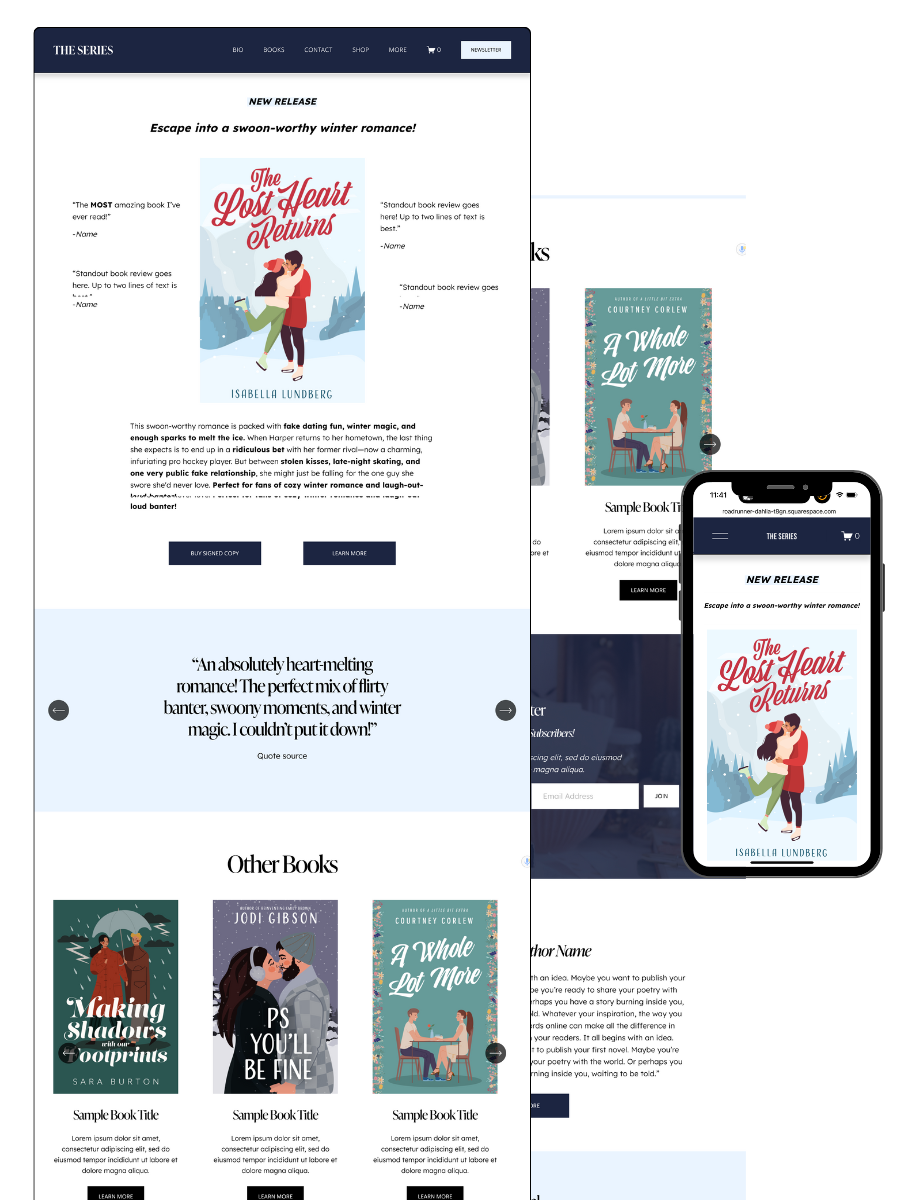
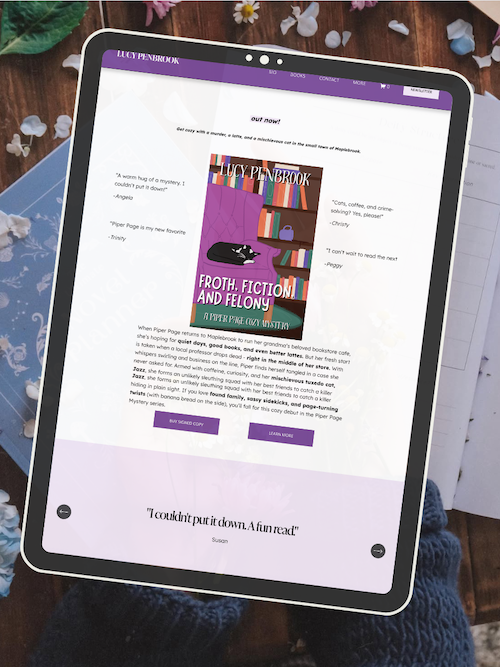
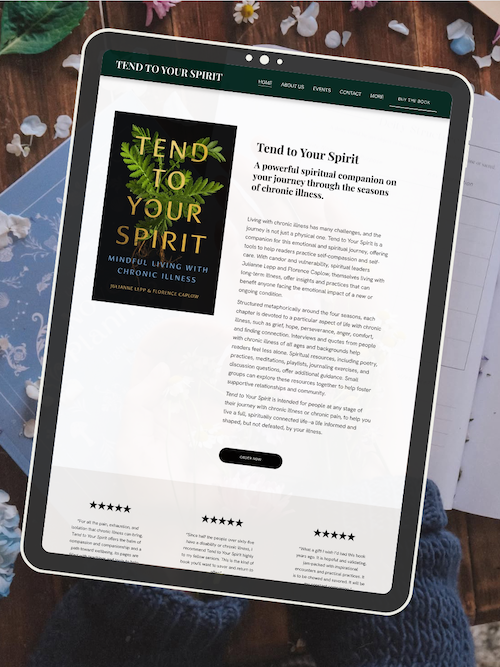
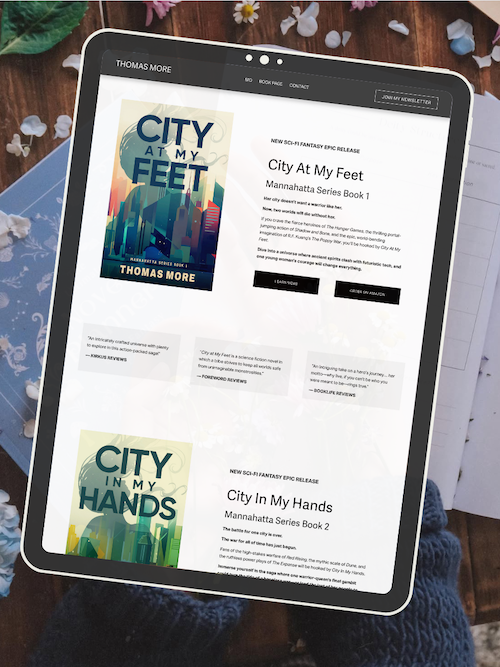
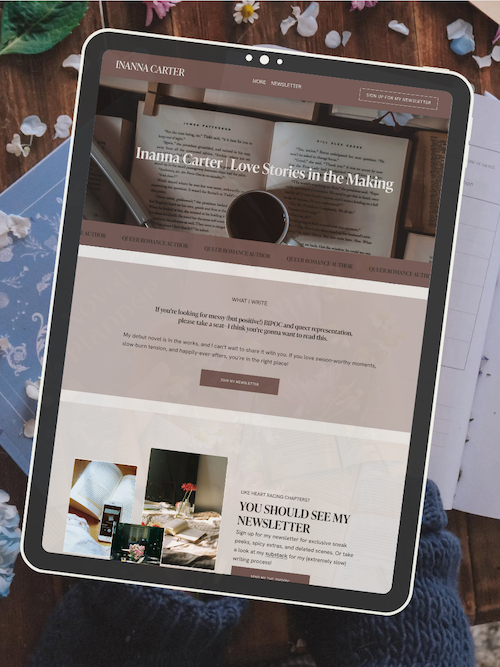
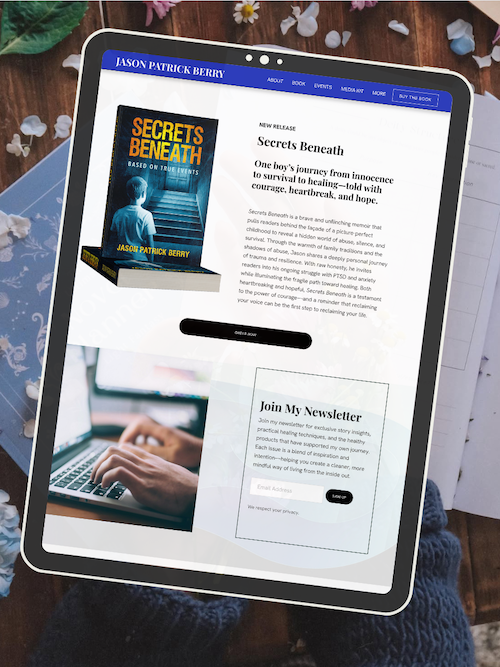
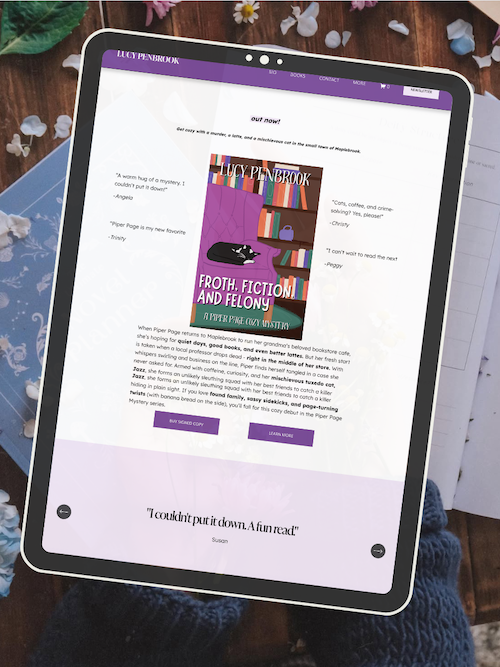
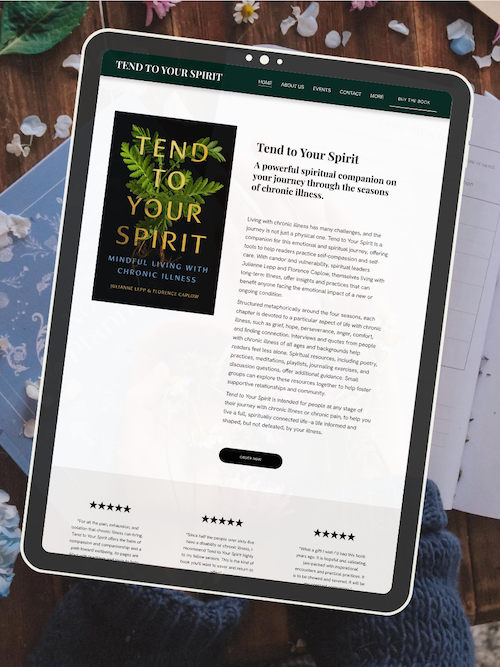
Here’s how real authors are using these Squarespace author website templates:
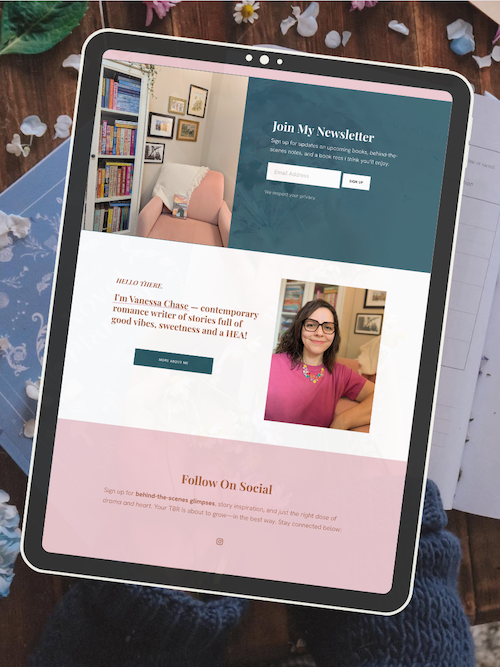
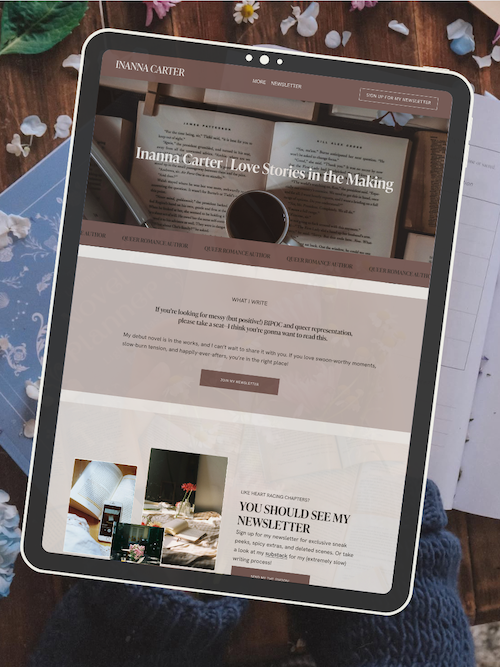
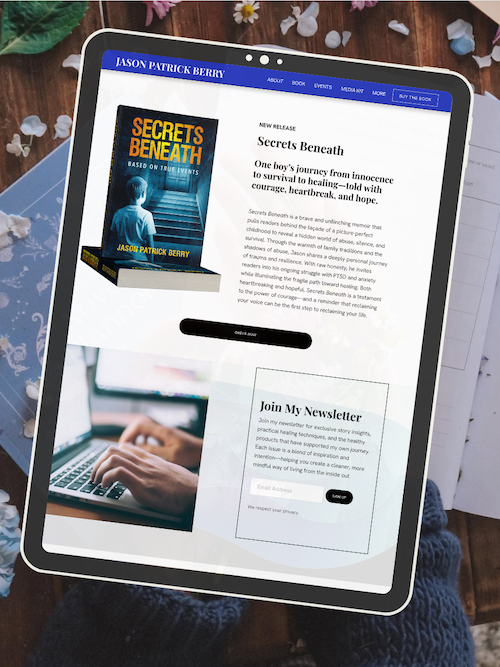
Why Your Author Website Matters for Book Sales
Social media platforms come and go. Algorithms change. Accounts get suspended. But your website? That's yours. It's the one place online where you control everything—the design, the message, and most importantly, how your books are presented.
A well-designed author website gives you full control over how readers discover your work. Unlike retailer pages where your book sits next to dozens of competitors, your website puts you and your books front and center. No distractions. No competing ads. Just your brand and your stories.
Your website also builds trust. When readers see a professional site that's easy to navigate and showcases your books clearly, they take you seriously as an author. It signals that you're invested in your career and makes them more likely to invest in your books.
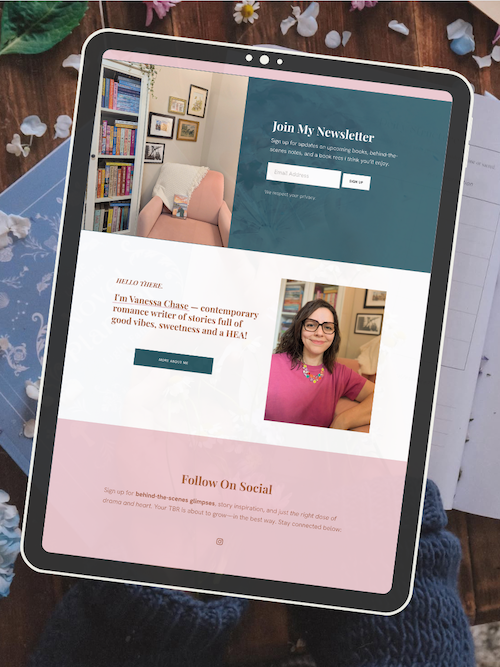
AUTHOR WEBSITE EXAMPLES
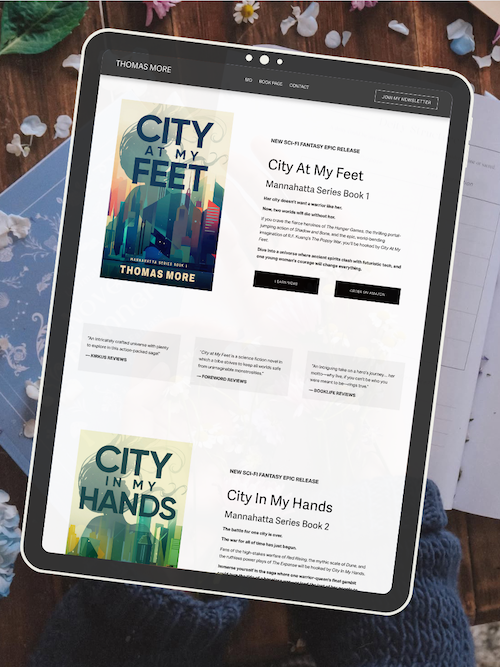
Essential Elements of a Book Showcase
Every book on your website needs certain elements to convert browsers into buyers. These aren't optional extras. They're the building blocks of an effective book display.
High-Quality Cover Images
Your book cover is the first thing readers notice. Use high-resolution images that look sharp on all devices. Blurry or pixelated covers make your books look unprofessional and hurt sales.
Display covers at a size that's easy to see but doesn't slow down your page. A good rule is to show them large enough that readers can read the title and see the artwork clearly.
Consider showing your covers from multiple angles or with 3D mockups. This adds visual interest and makes your books feel more like real, tangible products readers want to own.
Compelling Book Descriptions
Your book description needs to hook readers fast. Start with your best pitch—the one sentence that makes someone want to know more. Then build on it with emotional stakes, character appeal, or the promise your book makes to readers.
Keep paragraphs short. Three sentences max. White space makes descriptions easier to scan and more inviting to read.
Include genre, series information, and any reader warnings or content notes. Be upfront about what readers are getting. This builds trust and helps the right readers find you.
Direct Purchase Links
Make buying easy. Include clear, clickable buttons that take readers straight to retailers where they can purchase your book. Don't make them hunt for where to buy.
Offer multiple purchase options if possible. Some readers prefer Amazon. Others want to support indie bookstores. Give them choices and you'll capture more sales.
Place purchase buttons in obvious spots. Right below your cover image and description works well. Repeat them at the bottom of the page too, so readers who scroll down don't have to scroll back up.
Creating Dedicated Book Pages
Each book deserves its own page. Don't cram all your titles onto one crowded page where they compete for attention. Individual pages let you give each book the spotlight it deserves.
A dedicated page gives you room to include everything readers need to make a buying decision. Cover, description, purchase links, reviews, extras like character art or playlists, and even the first chapter.
Individual pages also help with search engine optimization. Each page can target specific keywords related to that book, making it easier for new readers to find you through Google.
What to Include on Each Book Page
Start with the cover image at the top where it's impossible to miss. Place your purchase buttons right next to or below it.
Add your book description next. Make it scannable with short paragraphs and bullet points if needed.
Include praise and reviews. Reader testimonials and professional reviews add social proof that convinces fence-sitters to buy.
Consider adding extras like a sample chapter, bonus content, or behind-the-scenes details about writing the book. These create a deeper connection and make your page more engaging.
Don't forget series information if applicable. Link to other books in the series and show reading order clearly.
Organizing Multiple Books
If you have several books, organization matters. Group them by series, genre, or publication date—whatever makes sense for your catalog.
Use clear navigation so readers can find what they're looking for fast. A dropdown menu in your main navigation or a dedicated "Books" page with thumbnails works well.
Feature your newest or most popular book prominently on your homepage. This catches attention immediately and drives traffic to your latest release.
Design Tips That Drive Sales
Design isn't just about looking pretty. It's about making your books easy to find, understand, and buy. Good design removes friction from the buying process.
Keep It Simple and Scannable
Avoid cluttered layouts. Give your books breathing room with plenty of white space. This makes your pages easier to read and your books easier to focus on.
Use headings and subheadings to break up text. Readers scan web pages. Make it easy for them to find what they need.
Limit fonts to two or three at most. Too many fonts look messy and unprofessional.
Mobile-Friendly Display
More than half of web traffic comes from mobile devices. If your book pages don't look good on phones, you're losing sales.
Test your pages on multiple devices. Make sure covers are visible, text is readable, and buttons are easy to tap.
Keep load times fast. Large images can slow down mobile pages. Compress files without sacrificing quality.
Consistent Branding
Your website should feel cohesive. Use the same colors, fonts, and style across all your book pages.
This builds brand recognition. When readers see consistent design, they remember you and your books more easily.
Pull design elements from your book covers if possible. This creates a visual connection between your website and your books.
Adding Interactive Features
Interactive elements make your book showcase more engaging and memorable. They give readers a reason to stick around and explore.
Book Previews and Sample Chapters
Let readers try before they buy. Offering a sample chapter or preview reduces risk and increases conversions.
Embed previews directly on your book page or link to a PDF. Make it easy to access with one click.
Some authors use services like BookFunnel to deliver samples.
How to Showcase Books on an Author Website
Your author website is your digital storefront, and displaying your books effectively can make the difference between a quick visit and an actual sale. A well-organized book showcase builds reader trust, highlights your writing style, and makes it easy for visitors to find and purchase your work.
Create a Dedicated Books Page
Your books page is the centerpiece of your author website. Create a clear, easy-to-find books page in your main navigation menu. Label it simply as "Books" or "My Books" so visitors know exactly where to look.
This page should list all your published works in one place. You can organize them by series, genre, or publication date depending on what makes sense for your catalog. If you have a large catalog, consider using categories or filters to help readers browse.
Each book listing should include the cover image, title, a brief description, and purchase links. Keep the layout clean and scannable. Readers should be able to quickly see what you've written and decide what interests them.
Don't bury your books page in a dropdown menu or sub-navigation. Make it prominent and accessible from every page on your site.
Optimize Book Covers and Descriptions
Book covers are your first impression. Use high-quality images that are crisp and clear on all devices. Your cover image should be large enough to read the title and see design details, but not so large that it slows down your page load time.
Make sure your covers are consistent in size and format across your books page. This creates a professional, polished look. Most author websites display covers at a minimum of 300 pixels wide for good visibility.
Write book descriptions that hook readers in the first sentence. Include the genre, main character or premise, and what makes your book unique. Keep descriptions between 100-200 words—long enough to intrigue but short enough to read quickly.
Use formatting to make descriptions scannable. Break up text into short paragraphs. Bold key phrases or quotes. Include publication details like release date and page count if relevant.
Add Reader Reviews and Testimonials
Social proof sells books. Reader reviews and testimonials show potential buyers that real people loved your work. Display 2-3 strong testimonials directly on each book's page or your main books page.
Choose reviews that are specific and emotional. Generic praise like "good book" doesn't convert. Look for testimonials that mention plot points, character connections, or how the book made them feel. Include the reviewer's name and where the review came from (Goodreads, Amazon, book blogger, etc).
You can pull reviews from Amazon, Goodreads, or other retailers. Ask permission from reviewers if you're using their full name or photo. If you have professional reviews from publications or well-known authors, feature those prominently—they add credibility.
Keep testimonials fresh by updating them after each book launch. New reviews show your books are actively being read and discussed.
Set Up Clear Buy Links and Purchase Options
Make it easy to buy. Every book on your website should have clear, obvious purchase links. Use buttons with action-oriented text like "Buy Now," "Get Your Copy," or "Order Here."
Offer multiple purchase options. Not everyone shops at Amazon. Include links to:
Amazon (Kindle and paperback)
Apple Books
Barnes & Noble
Kobo
Your direct store (if you have one)
Local bookstores (use Bookshop.org)
Place buy buttons in multiple spots—near the book cover, at the end of the description, and in a sidebar. Don't make readers hunt for how to purchase.
If you offer freebies or reader magnets, use BookFunnel or similar services and include those links too. Some readers want to try before they buy.
Color-code or style your buy buttons to stand out from regular text links. They should be immediately visible when someone lands on your books page.
Highlight Featured and Upcoming Titles
Feature your newest or most popular book prominently. Create a hero section at the top of your books page or homepage that showcases your latest release. This catches visitors' attention immediately and drives them toward your current book marketing focus.
Include a countdown or announcement banner for upcoming book launches. Build anticipation by sharing the cover, description, and pre-order links. Update this section regularly as you release new work.
If you have a backlist, don't hide it—but do prioritize what you want readers to buy first. You can create a "Start Here" section that recommends the best entry point into your series or catalog.
Create dedicated book pages for each title, not just listings on your main books page. These individual pages give you space for longer descriptions, more reviews, bonus content, and deeper engagement. They also improve your SEO by creating more content around your book titles.
Integrate Social Proof and Author Bio
Connect your author bio to your book showcase. Readers want to know who wrote these books. Include a professional author photo and a short bio on or near your books page. Keep it 50-100 words—focus on your writing credentials, what you write, and one personal detail.
Link to your full about page if readers want more. Your author bio builds trust and helps readers connect with you as a person, not just a name on a cover.
Add social proof beyond reviews. Display awards, bestseller status, publication credits, or media mentions near your books. If you've been featured in notable outlets or won writing contests, mention it. This validates your work for new visitors.
Include follower counts, subscriber numbers, or reader community size if they're impressive. Numbers like "Join 10,000+ readers" show popularity and encourage others to follow.
Improve User Experience with Modern Website Design
Your author website design affects how readers interact with your books. A cluttered or outdated site drives visitors away. Use clean, modern layouts with plenty of white space. Make sure your books are easy to see and navigate.
Mobile optimization is critical. Over 60% of web traffic comes from mobile devices. Test your books page on phones and tablets. Covers should display clearly, descriptions should be readable, and buy buttons should be easy to tap.
Site speed affects both user experience and bounce rate. Compress your book cover images so pages load quickly. Slow sites frustrate visitors and hurt your search rankings. Aim for page load times under 3 seconds.
Choose website builders that support author needs. Squarespace, WordPress.com, self-hosted WordPress, and Bluehost all offer templates designed for writers. Pick one with good mobile responsiveness and fast loading speeds out of the box.
Leverage Multimedia and Author Blog Content
Add multimedia elements to your book pages. Create book trailers, narrated excerpts, or behind-the-scenes videos about your writing process. Videos increase engagement and give readers a reason to get extra excited about your book.
Frequently Asked Questions
Authors often wonder how to display their books, promote new releases, and build their email list directly from their website. The answers below cover practical ways to organize your book pages, create engaging content, choose the right Squarespace template, display reviews, and grow your newsletter subscribers.
What are the best practices for displaying my books on my author website?
Create a dedicated page for each book instead of listing everything on one crowded page. Each book should have its own space where readers can really get to know it.
Use high-quality cover images that are crisp and professional. Make sure the image is large enough to see clearly but doesn't slow down your page load time.
Include multiple purchase links below each book cover. Link to Amazon, Barnes & Noble, Kobo, Apple Books, and any other retailers where your book is available. This gives readers choices based on where they prefer to shop.
Write a compelling book description that hooks readers in the first sentence. Keep it between 100-200 words and focus on what makes your book interesting, not just a dry summary.
Add reader reviews or testimonials near the purchase buttons. Social proof helps convince visitors that your book is worth reading.
How can I use my author website to effectively promote my new book release?
Create a homepage banner or announcement bar that directs visitors straight to your new release page. This ensures everyone who lands on your site sees your latest book first.
Write a dedicated blog post about your new release. Share the inspiration behind the story, your writing process, or behind-the-scenes details that make readers feel connected to your work.
Add a "New Release" or "Latest Book" section on your homepage that features your newest title with its cover, a short description, and a clear call-to-action button. Update this section whenever you publish something new.
Set up a pre-order page if your book isn't out yet. Include the cover, description, release date, and pre-order links to build momentum before launch day.
Use Squarespace's announcement bar feature to create urgency. You can add text like "New Release Available Now" or "Pre-Order Today and Get Exclusive Bonus Content" that stays visible as visitors browse your site.
What content should I include on my book detail pages for optimal engagement?
Start with a full-size book cover at the top of the page. This should be the first thing readers see when they land on your book's page.
Write two versions of your book description—a short hook (1-2 sentences) and a longer synopsis (3-4 paragraphs). The short version grabs attention, and the longer one gives details for readers who want to know more.
List key book details in an easy-to-scan format. Include genre, page count, publication date, ISBN, and format options (paperback, hardcover, ebook, audiobook).
Add reader reviews and ratings prominently on the page. Pull quotes from positive reviews and include star ratings if you have them.
Include buy buttons or purchase links in multiple spots on the page. Put them near the top, in the middle after your description, and at the bottom so readers can buy whenever they're ready.
Feature any awards, bestseller status, or notable endorsements your book has received. This builds credibility and makes readers more likely to trust that your book is worth their time.
Add related books at the bottom of the page. If readers like one of your books, they'll probably want to know about others in the same series or genre.
How can I integrate reviews and testimonials on my website to showcase my books?
Create a dedicated testimonials section on each book's detail page. Pull 3-5 of your best reviews and display them in quote blocks with the reviewer's name and where the review came from (like Goodreads or Amazon).
Use a testimonials block or carousel on your homepage to rotate through positive reviews from multiple books. This shows visitors that readers love your work across your entire catalog.
Add star ratings near your book covers wherever they appear. Visual ratings are quick to scan and immediately communicate quality to potential readers.
Include blurbs from other authors, industry professionals, or media outlets near the top of your book pages. These carry extra weight because they come from trusted sources in the writing community.
Link directly to your Goodreads or Amazon review pages so visitors can read more opinions if they want to. This transparency builds trust and shows you're confident in your reviews.
Create a reviews page that collects praise for all your books in one place. Organize it by book or chronologically, and update it regularly as you receive new positive feedback.
What strategies can I employ on my website to encourage visitors to sign up for my newsletter?
Offer a free reader magnet in exchange for email signups. This could be a free short story, a sample chapter from your next book, or exclusive bonus content related to your series.
Place newsletter signup forms in multiple locations on your site. Add one in your header or announcement bar, one at the end of blog posts, and one on your homepage.
Write clear, benefit-focused copy for your signup forms. Instead of just saying "Join my newsletter," tell visitors what they'll get—like "Get free stories, early book announcements, and behind-the-scenes updates delivered to your inbox."
Create a dedicated newsletter landing page that explains exactly what subscribers will receive and how often. Be specific about the type of content you send and why it's valuable.
Use pop-ups strategically without being annoying. Set them to appear after someone has been on your site for 30-60 seconds or when they're about to leave the page.
Add social proof near your signup forms. Mention how many subscribers you have or include a testimonial from a reader who loved your book.
Ready to launch your author website?
Explore my Squarespace website templates designed specifically for authors — easy to customize, beautifully designed, and built to help you sell more books.

SHOP THE AUTHOR WEBSITE TEMPLATES
THE MANUSCRIPT AUTHOR WEBSITE TEMPLATE — perfect for authors launching their first professional website with a simple, polished layout
THE DEBUT AUTHOR WEBSITE TEMPLATE — designed to highlight your first book, build your email list, and grow an audience from day one
THE SERIES AUTHOR WEBSITE TEMPLATE — ideal for showcasing multiple books with clear series pages and strong reader flow
THE ONE-PAGE AUTHOR AUTHOR WEBSITE TEMPLATE — a streamlined one-page site for authors who want something beautiful, fast, and easy
THE DONE-FOR-YOU AUTHOR WEBSITE EXPERIENCE — your author website built for you so you can launch without touching design or tech
MOST POPULAR BLOG POSTS
Authors Guide to Website Design & Branding
Squarespace Email Campaigns: A Guide for Authors
How to Create an Author Website on Squarespace (Step-by-Step)

Launch Your Author Website in a Day (Without the Tech Overwhlem)
*No more starting from scratch.
A simple, done-for-you Squarespace template built specifically for authors with a WIP.