How to Create an Author Website on Squarespace in 2026: A Step-by-Step Setup Guide for Beginners
If you're an author ready to build your online presence, creating a professional website on Squarespace is one of the smartest steps you can take in 2026. A dedicated author website gives you a home base to showcase your books, connect with readers, and build your brand—all without needing tech skills or a big budget. Squarespace makes this process simple with clean templates, drag-and-drop tools, and built-in features designed to help you look professional from day one.
You don't need to be a web designer or hire an expensive developer. With Squarespace, you can have a polished, mobile-friendly author site up and running in just a few hours. The platform handles hosting, security, and updates automatically, so you can focus on what matters most—writing and connecting with your audience.
This guide walks you through every step of building your author website on Squarespace in 2026. From choosing the right template to setting up your domain name and publishing your first pages, you'll learn exactly what to do to create a site that attracts readers and supports your author career.
Key Takeaways
Squarespace offers beginner-friendly tools that let authors create professional websites without technical experience
You can build and launch your author site in just a few hours using customizable templates and drag-and-drop editing
A custom domain name and clear author pages help you establish credibility and connect with readers effectively
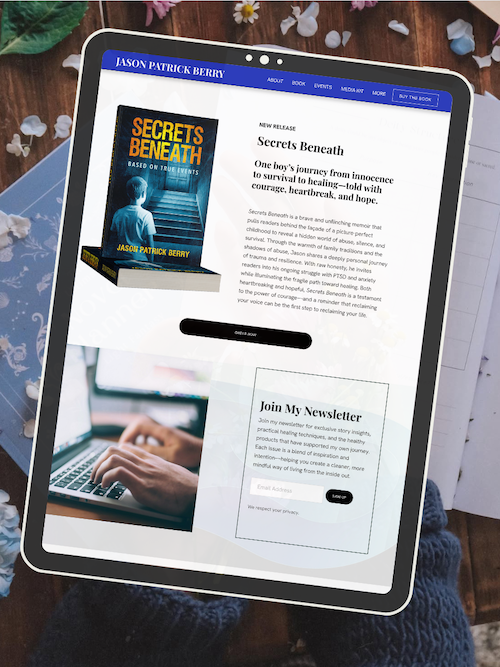
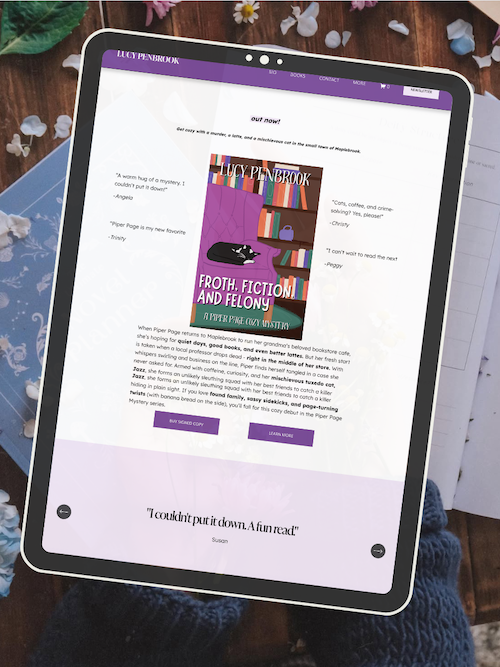
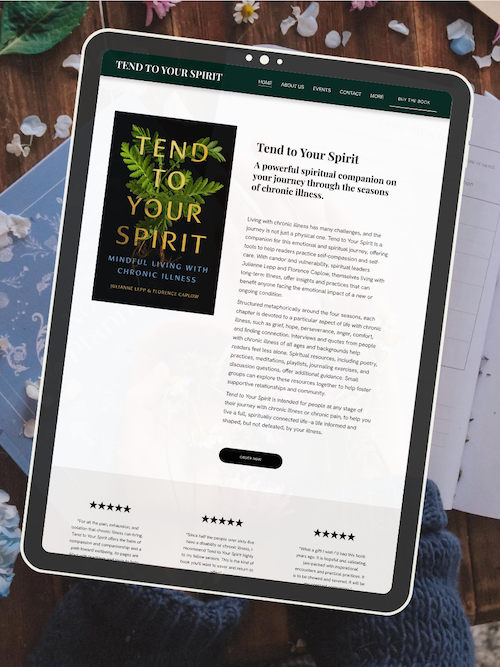
Want a beautiful author website without spending weeks designing it from scratch? These Squarespace website templates for authors are designed to showcase your books, grow your email list, and look professional instantly.

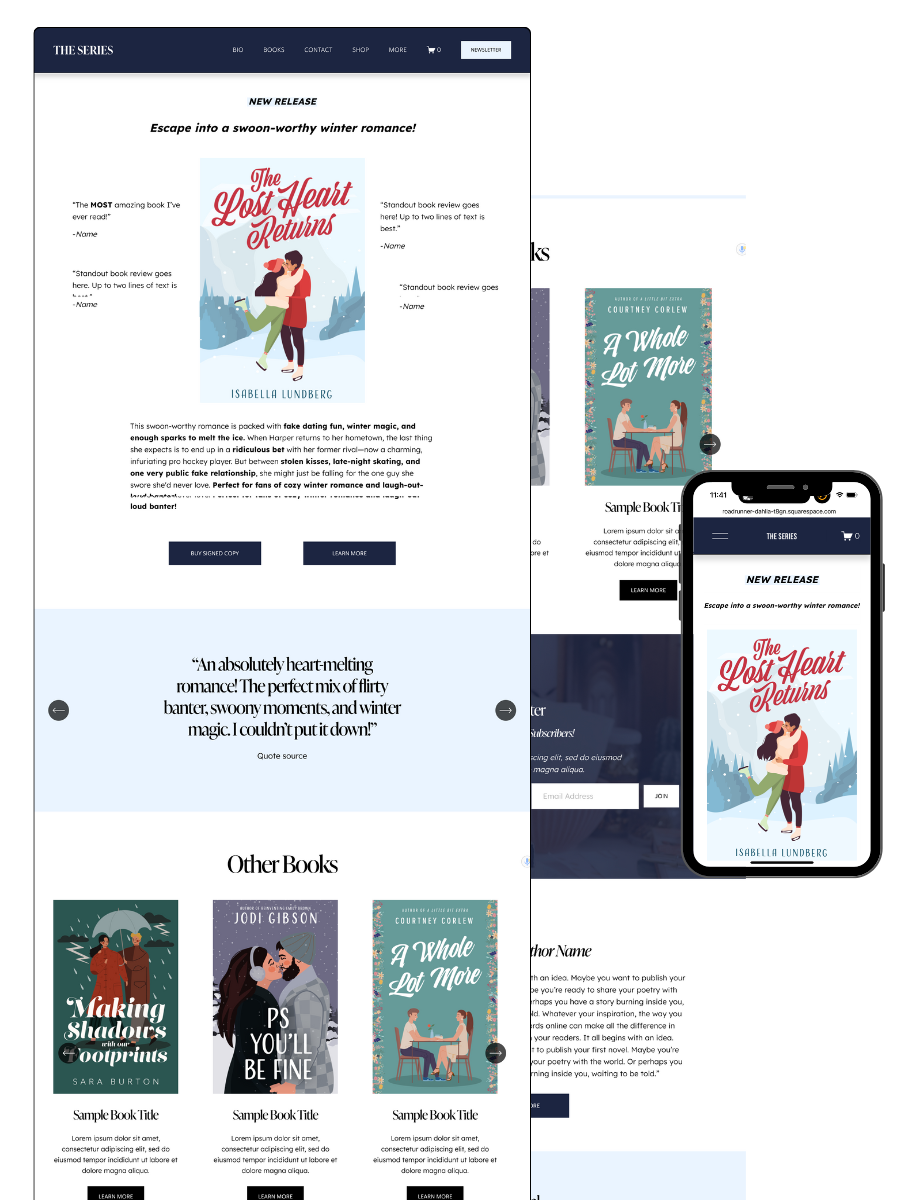
Here’s how real authors are using these Squarespace author website templates:
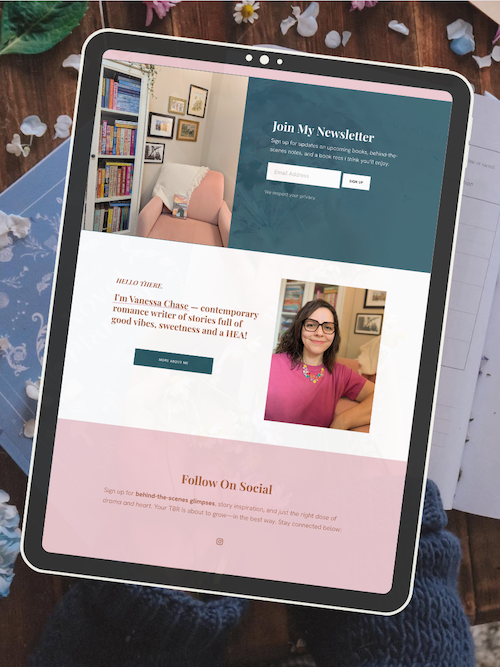
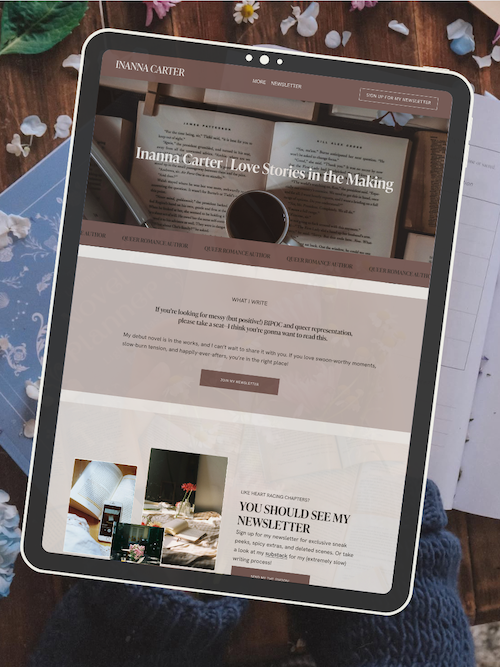
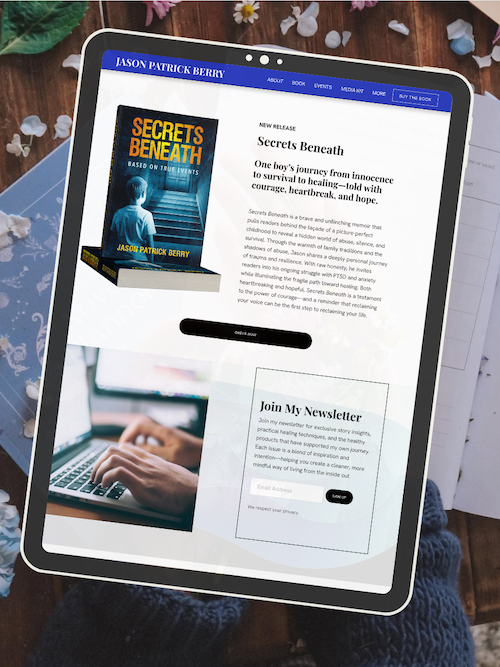
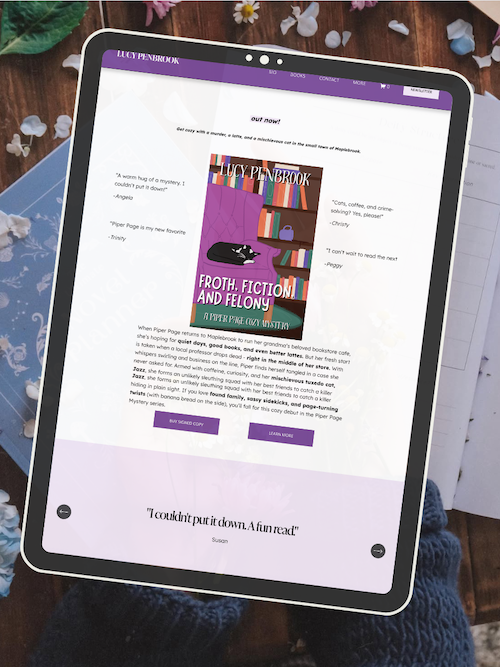
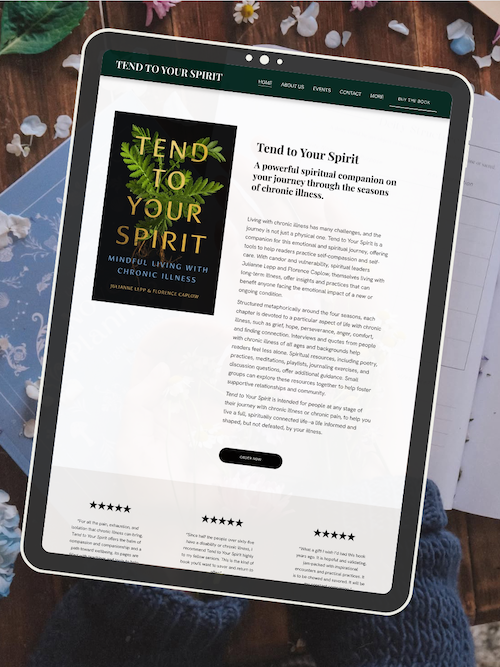

How to Create an Author Website on Squarespace in 2026: Step-by-Step Guide
Building your author website on Squarespace involves planning your site goals, choosing a template that fits your brand, and setting up essential pages that help you connect with readers. You'll customize your design, add your books, set up marketing tools, and optimize for search engines before going live.
Set Your Site Goals and Purpose
Before you open Squarespace, get clear on what you want your author website to do. Are you building it to sell books directly? To grow your newsletter? To showcase your writing portfolio and attract agent attention?
Write down your top three goals. This keeps your design focused and prevents you from adding unnecessary pages or features that distract readers.
Think about your target audience too. If you write romance, your readers want to see your latest releases and series order. If you write nonfiction, they want your credentials and speaking topics. Your site goals and audience needs should guide every design choice you make.
Most author websites aim to build an email list, showcase books, and establish credibility. Pick the goal that matters most to you right now and make that the star of your homepage.
Picking the Right Squarespace Template for Authors
Squarespace offers dozens of website templates, but not all of them work well for authors. You want clean, readable layouts that put your books front and center without overwhelming visitors.
Look for templates with strong image galleries (for book covers), clear navigation, and mobile-responsive design. Templates like Bedford, Pazari, and Paloma work well for authors because they balance visual appeal with readability.
Don't overthink this step. You can customize any Squarespace template extensively, so focus on the basic layout structure rather than exact colors or fonts. Ask yourself: Does this template make it easy to feature my books? Can readers find my newsletter signup quickly?
Preview templates on both desktop and mobile. Many readers will visit your author site from their phones, so your chosen template needs to look good on small screens.
Once you choose a template, click "Get Started" and Squarespace will create your new site. You can always switch templates later if needed, though you'll need to adjust your content again.
Register a Custom Domain Name
Your domain name is your author website address—like yourname.com. A custom domain looks professional and makes you easier to find online.
In your Squarespace dashboard, go to Settings > Domains. You have three options:
Get a domain (purchase through Squarespace)
Use a domain I own (transfer or connect an existing domain)
Use a free Squarespace domain (ends in .squarespace.com)
Purchase your domain through Squarespace if you don't have one yet. It's simpler because everything stays in one place. Your first year is free with annual Squarespace plans.
Use your author name as your domain when possible. If YourName.com is taken, try variations like YourNameAuthor.com or YourNameBooks.com. Avoid hyphens, numbers, or unusual spellings that make you harder to find.
Keep it simple. Readers should be able to hear your domain name once and type it correctly from memory.
Customize Your Site Header and Favicon
Your site header appears at the top of every page. It typically includes your logo or author name, navigation menu, and sometimes a tagline.
Go to Design > Site Styles or click Edit on your site header. Upload your author logo if you have one, or just use your name in a clean font. Your header should be readable but not overwhelming—simple beats fancy every time.
Set up your main navigation menu. Most author websites need these pages:
Home
Books
About
Contact
Keep your menu short. If you need more pages, group them under dropdown menus.
Your favicon is the tiny icon that appears in browser tabs next to your page title. Add one by going to Design > Browser Icon. Upload a simple image—your book cover, your initials, or a small logo. It should be recognizable even at 16x16 pixels.
These small details make your author website look polished and professional. They're quick to set up but make a lasting impression.
AUTHOR WEBSITE EXAMPLES
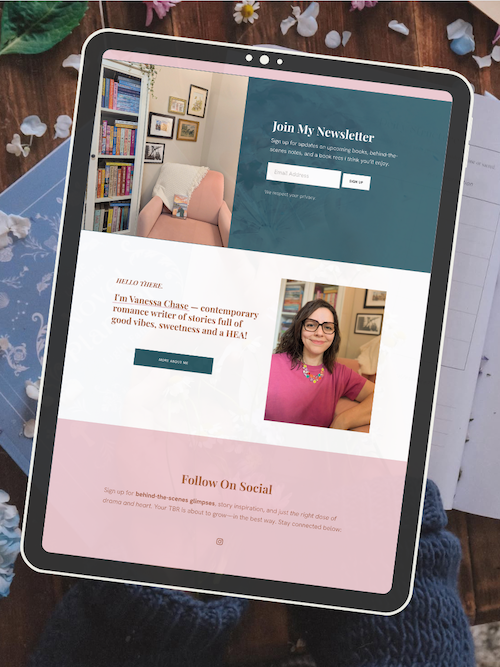
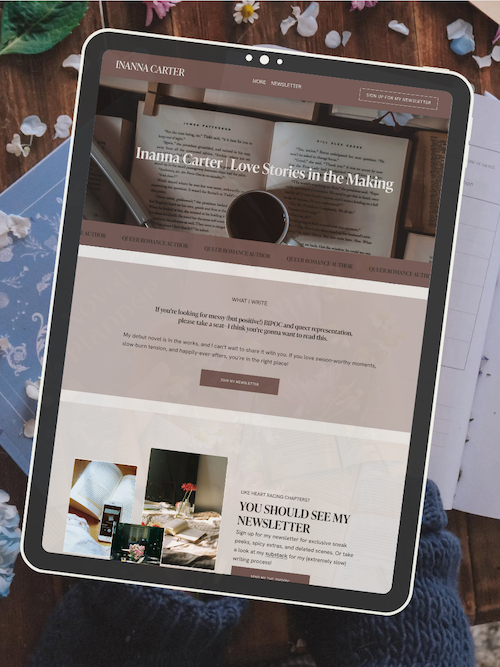

Design Your Author Website with Site Styles and Color Palettes
Site styles control your entire website design—fonts, colors, spacing, and button styles. Squarespace makes this simple with preset color palettes you can customize.
Go to Design > Site Styles to access all design controls. Start with your color palette. Pick colors that match your author brand and book genres. Romance authors often use warm, rich colors. Thriller writers might choose darker, moodier palettes.
Don't use more than three or four main colors. Too many colors look messy and unprofessional. Use one color for your main brand, one for accents, and keep text black or dark gray for readability.
Choose fonts next. Squarespace pairs fonts automatically, but you can customize them. Pick a bold, readable font for headings and a simple, clean font for body text. Avoid script fonts for large blocks of text—they're hard to read on screens.
Adjust button styles, spacing, and animation effects if you want. But remember: simple, clean website design beats trendy effects. Your readers care more about finding your books than flashy animations.
Test your design on mobile before moving forward. Click the mobile preview icon in your editor to see how it looks on phones.
Build Essential Author Pages
Your author website needs specific pages to work effectively. Start with these core pages and add more later if needed.
Homepage: Your most important page. Feature your newest book, a brief welcome, and a clear newsletter signup. Add a professional author photo and link to your other key pages.
Books Page: Create a dedicated page showcasing all your books. Use image blocks with book covers and short descriptions. Link each book to purchase options or a detailed book page.
About Page: Tell readers who you are, what you write, and why. Include a longer author bio, professional photos, and personal details that help readers connect with you.
Contact Page: Make it easy for readers, agents, and media to reach you. Add a contact form using Squarespace's built-in form block.
To add a new page, click Pages in your left menu, then click the + icon. Choose "Page" and select a layout. Name your page and start adding content.
Use the add section and add block features to build each page. Sections organize your page into horizontal rows. Blocks are individual elements like text, images, or buttons.
Optimize Your Author Bio and About Page
Your about page is where
Frequently Asked Questions
Author websites need a few core pages, search visibility, and tools that support book sales and reader connection. These answers help you make smart decisions about your Squarespace site.
What are the essentials to include when setting up my author website on Squarespace?
Your author website needs an About page that tells readers who you are and why you write. Keep it short and personal. Share your background, your writing journey, and what drives your work.
A Books page is where you showcase your published work. Include cover images, book descriptions, buy links, and reviews. Make it easy for visitors to see what you've written and where to get it.
Your Contact page should include a simple form so readers, agents, or event coordinators can reach you. You can also link to your social media profiles here.
A Home page acts as your welcome mat. Use it to introduce yourself quickly, highlight your latest book, and direct visitors to other parts of your site. Keep it clean and focused.
How can I optimize my Squarespace author website for search engines?
Start with your page titles and descriptions. Go to each page's settings and write clear, specific titles that include relevant keywords like your name and genre. Write meta descriptions that tell people exactly what they'll find on that page.
Use headings properly throughout your content. Your page title should be an H1. Section titles should be H2s. This helps search engines understand your content structure.
Add alt text to every image on your site. Describe what's in the image using simple, clear language. This helps search engines index your images and makes your site more accessible.
Connect your site to Google Search Console. This free tool shows you how Google sees your site and helps you fix any issues. It takes about five minutes to set up.
Write fresh content regularly through a blog. Search engines favor sites that update consistently. Even one post per month helps.
What are the best practices for integrating an online store within my author website on Squarespace?
Turn on Squarespace Commerce in your settings to start selling. You can sell physical books, ebooks, merchandise, or digital downloads like signed bookplates. The commerce features work seamlessly with your existing site.
Create product pages with clear photos, detailed descriptions, and pricing. For books, include the cover, a compelling description, sample chapters if possible, and any reviews or awards. Make the buy button obvious.
Set up your payment processing through Stripe or PayPal. Squarespace walks you through this process step by step. You'll need a business bank account to receive payments.
Configure your shipping options if you're selling physical items. You can charge flat rates, calculate by weight, or offer free shipping. Be clear about processing times and where you ship.
Consider offering bundle deals or discounts for newsletter subscribers. Squarespace lets you create discount codes easily. This gives readers an incentive to join your email list.
Can you guide me through customizing my Squarespace website to reflect my author brand?
Choose colors that match your book covers or genre. Go to Design settings and select Site Styles. Pick 2-3 main colors and stick with them throughout your site. Consistency builds recognition.
Select fonts that reflect your writing style. Literary fiction might use elegant serif fonts. Thrillers might go bold and modern. Squarespace offers dozens of professional font pairings.
Upload your author logo or create a text-based wordmark using your name. Place it in your header so it appears on every page. Your logo becomes your visual signature.
Use high-quality photos that represent you and your work. Invest in a professional headshot if possible. Use lifestyle images that match your genre's mood.
Create custom page layouts using Squarespace's flexible sections. You can add image blocks, text blocks, buttons, and more. Drag and drop them until the layout feels right. Save sections you like as templates for future pages.
How do I connect my social media profiles to my Squarespace author website?
Add social icons to your header or footer through Design settings. Click Social Links and enter your profile URLs for platforms like Instagram, Facebook, X (Twitter), and Goodreads. The icons will appear automatically.
Embed your Instagram feed directly on your homepage or a dedicated page. Use the Instagram block in the page editor. This shows visitors your latest posts without them leaving your site.
Link to your social profiles from your About page and Contact page. Make it easy for readers to follow you wherever they prefer to engage.
Add social sharing buttons to your blog posts. This lets readers share your content on their own profiles. More shares mean more visibility for your work.
Consider adding a Linktree-style page on Squarespace. Create a simple page with buttons linking to all your social profiles, your books, and your newsletter. Share this single URL in your social media bios.
What are the steps to creating a blog on my Squarespace author website to engage my readers?
Enable the blog feature when you first set up your site, or add it later by creating a new Blog page. Squarespace includes blogging functionality in all plans.
Choose a blog layout that's easy to read. Simple, clean designs work best. Readers should focus on your words, not flashy design elements. Most author sites use a single-column layout with a sidebar.
Write your first post and publish it. Don't overthink this. Share a story about your writing process, introduce yourself, or explain what readers can expect from your blog. The first post doesn't need to be perfect.
Create categories for your blog content. You might have categories like Writing Tips, Book Updates, Behind the Scenes, or Reading Recommendations. Categories help readers find content they care about.
Set up a consistent posting schedule. Weekly is great, but even monthly works if that's what you can sustain. Consistency matters more than frequency.
Add a newsletter signup form to your blog sidebar or at the end of each post. Turn blog readers into email subscribers. Squarespace makes this easy with built-in form blocks that connect to your email marketing tool.
Ready to launch your author website?
Explore my Squarespace website templates designed specifically for authors — easy to customize, beautifully designed, and built to help you sell more books.

SHOP THE AUTHOR WEBSITE TEMPLATES
THE MANUSCRIPT AUTHOR WEBSITE TEMPLATE — perfect for authors launching their first professional website with a simple, polished layout
THE DEBUT AUTHOR WEBSITE TEMPLATE — designed to highlight your first book, build your email list, and grow an audience from day one
THE SERIES AUTHOR WEBSITE TEMPLATE — ideal for showcasing multiple books with clear series pages and strong reader flow
THE ONE-PAGE AUTHOR AUTHOR WEBSITE TEMPLATE — a streamlined one-page site for authors who want something beautiful, fast, and easy
THE DONE-FOR-YOU AUTHOR WEBSITE EXPERIENCE — your author website built for you so you can launch without touching design or tech
MOST POPULAR BLOG POSTS
Authors Guide to Website Design & Branding
Squarespace Email Campaigns: A Guide for Authors
How to Create an Author Website on Squarespace (Step-by-Step)

Launch Your Author Website in a Day (Without the Tech Overwhlem)
*No more starting from scratch.
A simple, done-for-you Squarespace template built specifically for authors with a WIP.